
Edit Excel workbooks with your AI agent (.xlsx)
Explore data, formulas, and charts in an XLSX workbook. Trace a change from a single input to the cells that depend on it.
Worksheets, formulas, and references
- Cells and number formats
- Format numbers as currency, dates, or percentages. Adjust cell borders and alignment, or merge adjacent cells.
- Reference cells on another worksheet
- Connect worksheets with formulas and cell references. Update the inputs, then check your financial statements and summaries.
- Organize and filter data
- Sort, filter, and remove duplicates to make records easier to inspect and use.
- Create a chart from a cell range
- Select a range of cells and choose a chart to compare values or show a trend.
- Draw with cell colors
- Watch the winter pixel-art demo to see cells become a picture as your agent fills them with color.
- Organize worksheets and freeze panes
- Organize worksheets, adjust rows and columns, and freeze panes to navigate larger tables.
- Give your agent a cell range
- Select a cell or a range of adjacent cells to show your agent which values to edit.
- Find the right workbook template
- Browse budgeting, analysis, and creative templates, then add your own data and requirements.
Check a formula across worksheets
After changing an input, trace the summary value back to the cells it uses.
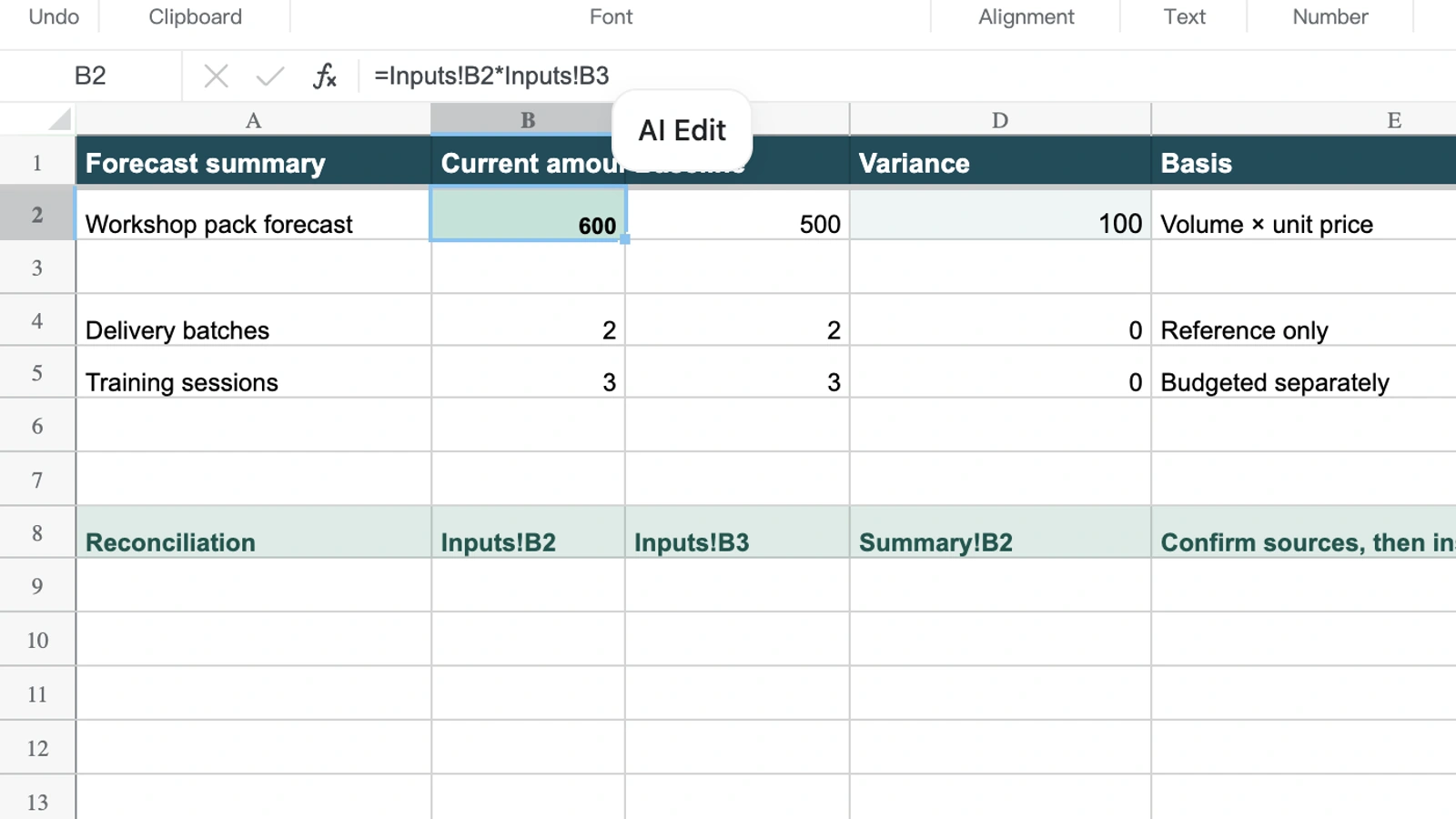
Check the neighboring periods and total row. Keep the copy in XLSX format so the next person can inspect its formulas.