
Why didn’t my Excel total update?
You changed 100 units to 120, but the total still shows 500. Check the input, the formula, and the copy you opened to find where the old figure comes from.
Steps
- Return to the input worksheet. In the example, Inputs!B2 should contain the number 120 and B3 should still contain the unit price of 5. If B2 still reads 100, check whether the suggested edit is waiting for you to choose Apply.
- Select the total and look in the formula bar. If you see 500 there instead of a formula beginning with =, the cell contains a fixed value. If the total should change with volume, look up the intended formula in the original workbook and test it in a copy.
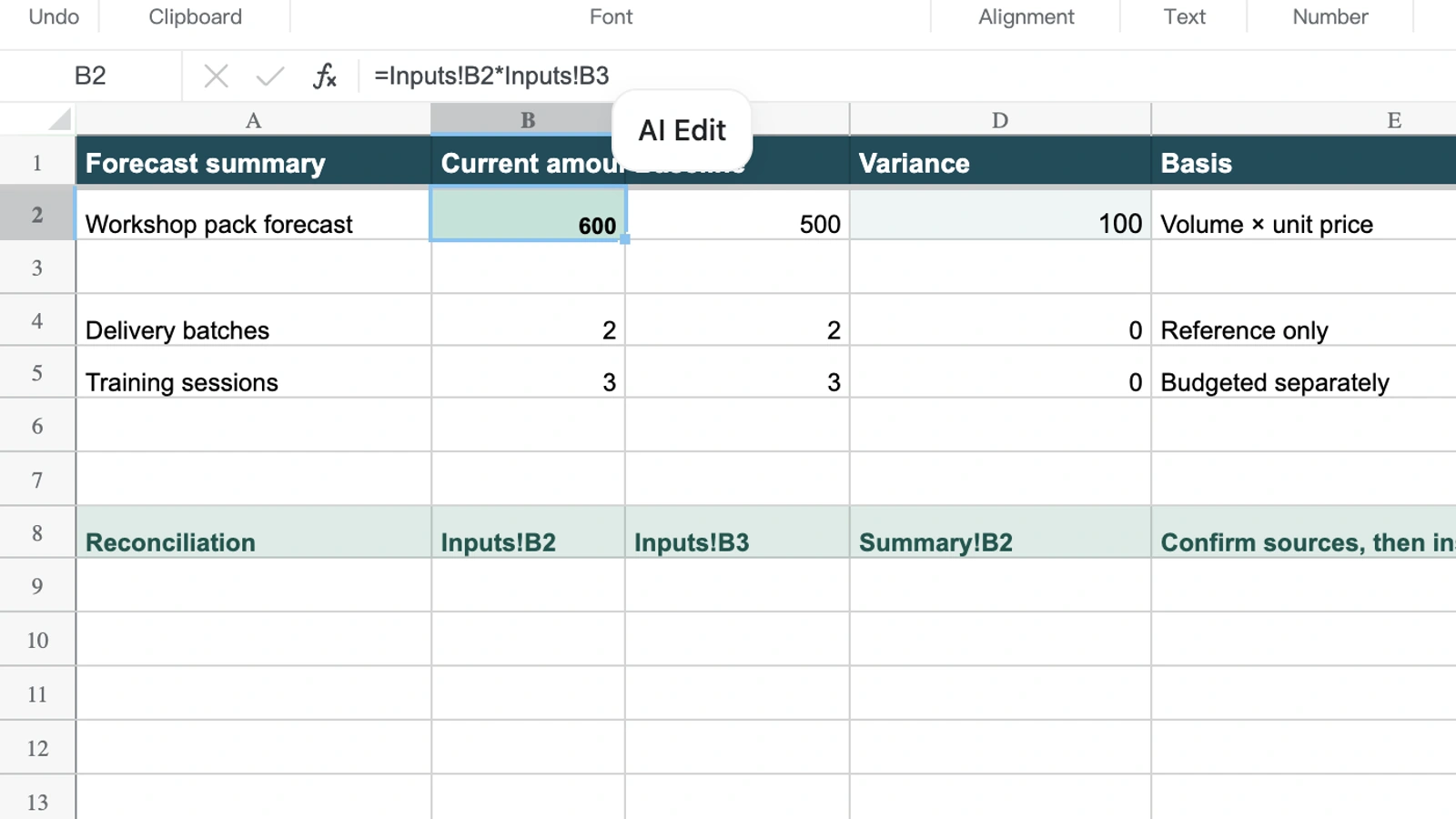
- If the cell contains a formula, follow each reference to its worksheet and cell. The example uses =Inputs!B2*Inputs!B3 in Summary!B2. Check for a reference to last month’s worksheet or a different row in your own workbook.
- If both inputs and references look right, use a test copy to switch the quantity between 100 and 120. Watch whether the total follows it from 500 to 600. If it stays fixed, record the worksheet name, inputs, full formula, and observed result for the person who maintains the workbook.
Check your result
Set the delivery copy to 120 units, save it, and reopen it from the destination folder. Look for 120 units, a unit price of 5, a total of 600, and the formula in the total cell. If 500 appears only after reopening, check the file path.
Compare the forecast before and after the edit