Accessible document previews: keyboard, reading order, and zoom tests
Evaluate keyboard use, reading order, zoom, and meaningful alternatives across the preview shell and rendered document.
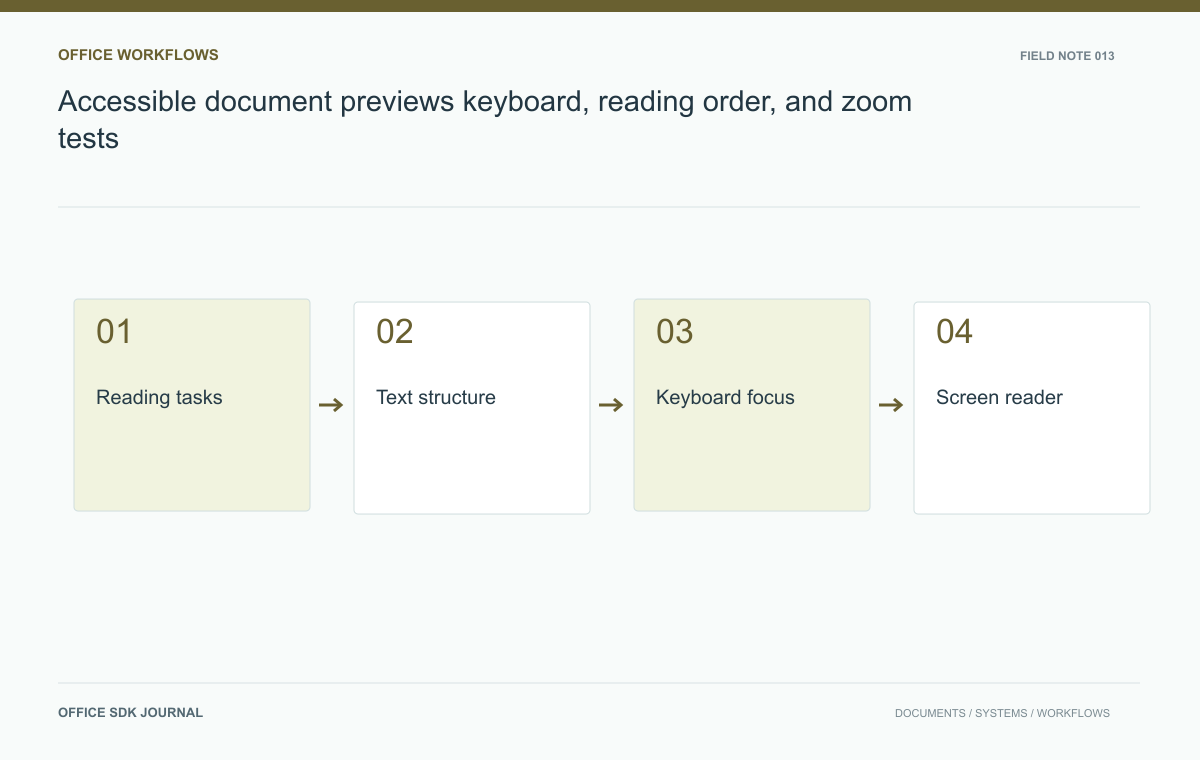
Test whether someone can open the preview, find a section, understand its content, and return to the application using a keyboard and relevant assistive technology. Accessibility depends on both the preview controls and the document representation. A labeled frame does not make page images or lost table structure readable.
Start with tasks a reader must finish
Start with practical tasks: open a document, identify its title and version, move between pages, search text, change zoom, download when permitted, and return to the application. Evaluate those tasks using keyboard input and assistive technology appropriate to the audience. A technical conformance checklist remains useful, but task based testing reveals whether individually labeled controls work as a coherent experience. Include loading and error states, because a preview that never announces completion can leave a screen reader user uncertain whether anything happened after opening the file.
Inspect the representation, not only the toolbar
Determine whether the view exposes semantic text, a text overlay, tagged PDF structure, or only page images. Each representation has different reading and navigation capabilities. Verify heading structure, table relationships, reading order, and alternative text where the pipeline supports them. Do not claim that an image based rendering becomes accessible simply by labeling the entire page. If source documents lack structure, document that input limitation and provide authoring guidance. If the rendering loses existing structure, treat that as a separate integration issue with a measurable impact.
Write observations as task results. “Tab reaches the next-page control and its accessible name includes the action” is more useful than “keyboard supported.” “The screen reader reads the table row without its column headings” identifies a specific loss of meaning. Capture the browser, assistive technology, source file, and preview mode with each result; behavior can vary across those combinations.
| Layer | Concrete question |
|---|---|
| Host application | Does opening the preview move focus predictably? |
| Preview controls | Can the user operate search, navigation, zoom, and close? |
| Document content | Are headings, reading order, tables, and image descriptions available? |
| Alternative route | Can an authorized user obtain a usable accessible representation? |
Keep alternative access meaningful. A download button is not automatically an accessibility remedy if the downloaded file has the same missing structure or requires unavailable software. Test the alternate route with the people and tools it is intended to support. Record limitations plainly so the product can guide users to a working path rather than an inaccessible second copy.

Focus and zoom at the embedded boundary
Give the embedded frame a meaningful title and make focus movement predictable when the preview opens or closes. Check for keyboard traps, hidden controls that still receive focus, and shortcuts that conflict with the host application. A user should be able to identify where focus is and return to the surrounding workflow. Test high zoom and narrow viewports with the toolbar and document visible. Horizontal scrolling inside a page may be unavoidable for some content, but clipped controls and unreachable dialogs are application defects.
Try the policy document without a mouse
Use a synthetic policy document with headings, a small table, a link, and an illustration with meaningful alternative text. Open it by keyboard, navigate the controls, locate a named section, and activate the link using a screen reader. Then repeat at increased zoom and with a slow loading response. Record where information becomes unavailable or focus is lost. This operational example provides evidence about the actual workflow without asserting universal accessibility across every file type, source quality, and assistive technology combination.

Record support and provide a usable alternative
- Record the browser, assistive technology, document format, and preview mode tested.
- Verify visible focus, accessible names, loading announcements, and error recovery.
- Offer an authorized accessible source or alternate representation when the preview cannot meet the task.
- Keep alternative downloads subject to the same document permissions.
- Retest representative structured and unstructured sources after rendering changes.
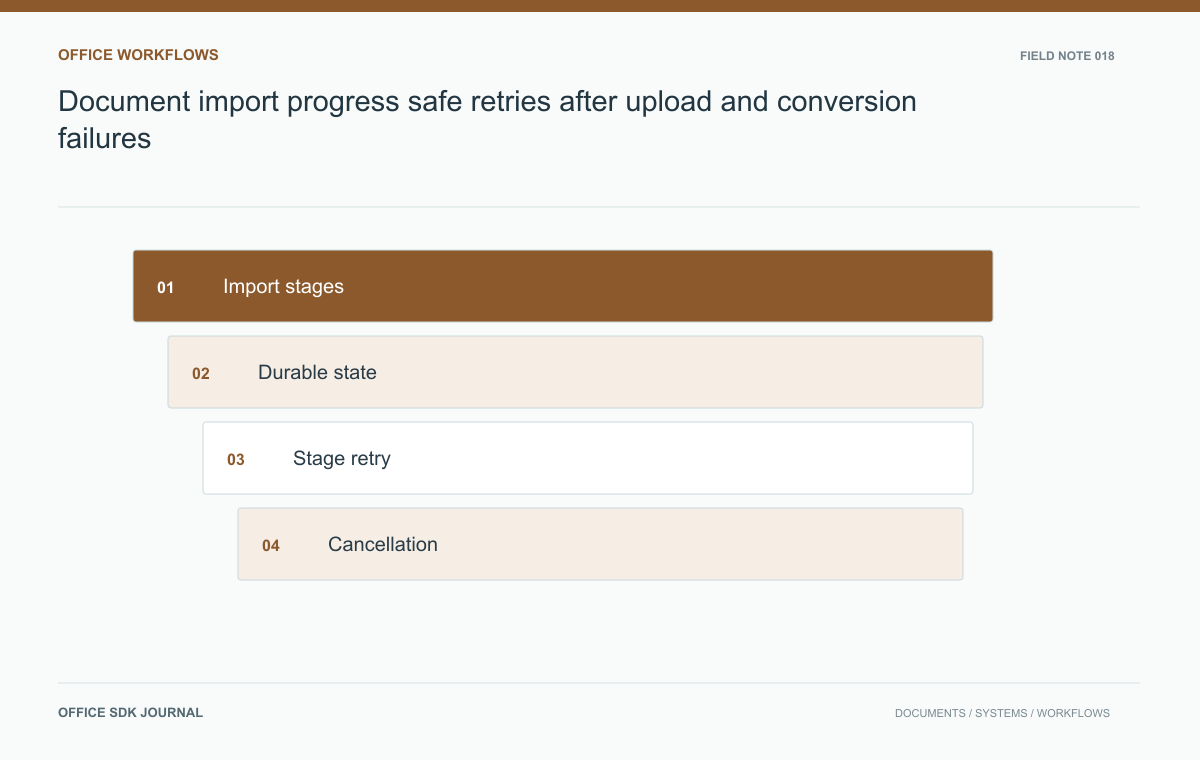
Document import progress: safe retries after upload and conversion failures
Give users honest progress, safe retries, and clear recovery when upload, validation, conversion, or registration fails.
Read story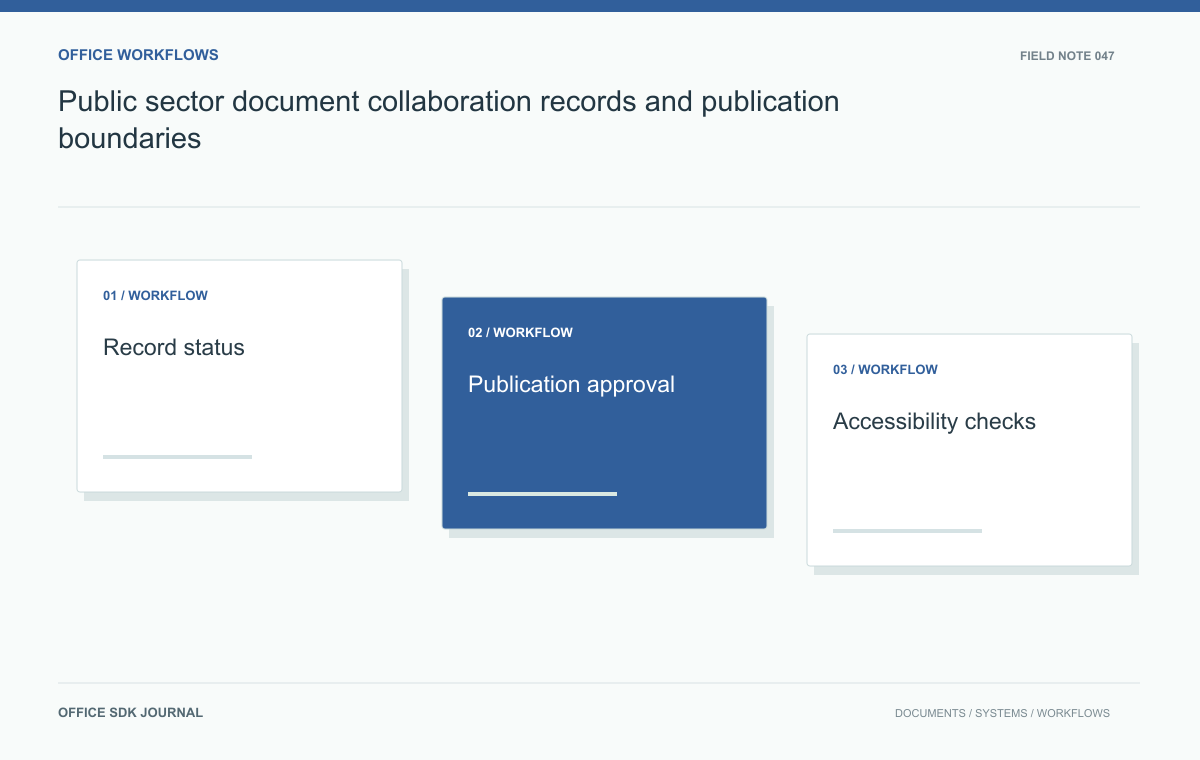
Public sector document collaboration: records and publication boundaries
Define working drafts, official records, access decisions, and accessible publication in public sector workflows.
Read story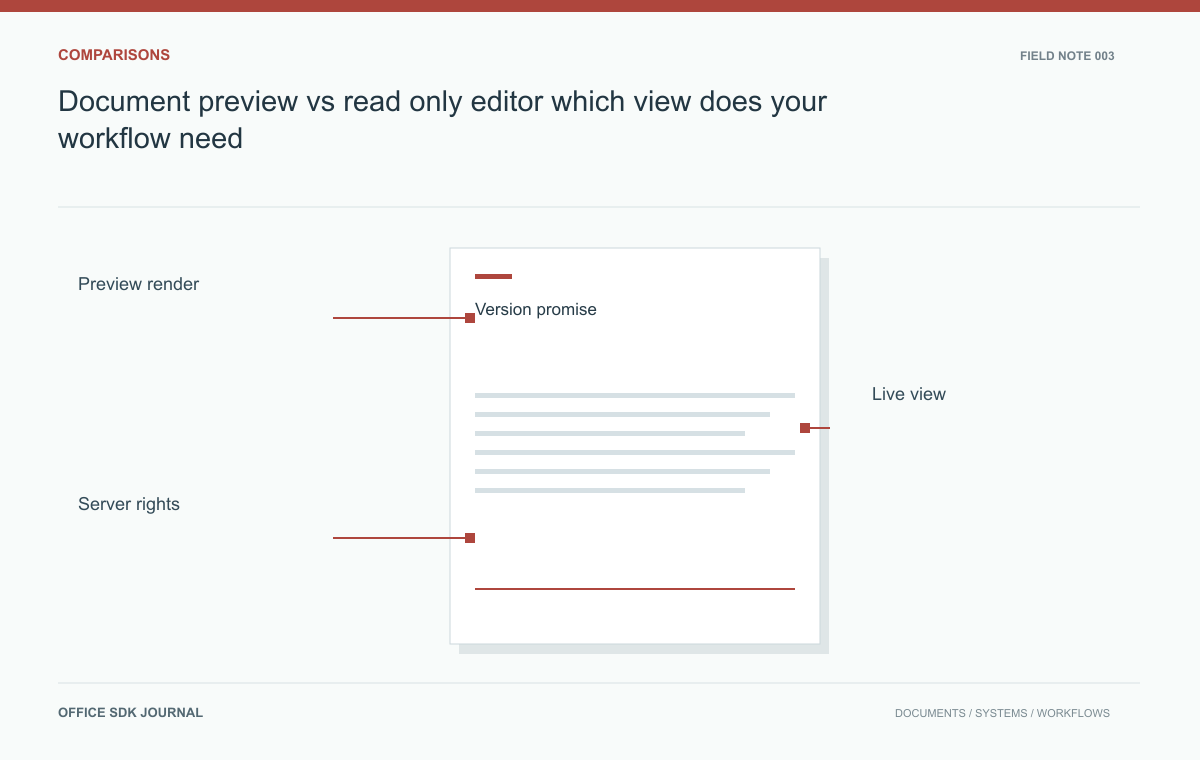
Document preview vs read only editor: which view does your workflow need?
Compare viewing workflows by data path, collaboration context, and permission requirements rather than the appearance of the toolbar.
Read story