Document preview vs read only editor: which view does your workflow need?
Compare viewing workflows by data path, collaboration context, and permission requirements rather than the appearance of the toolbar.
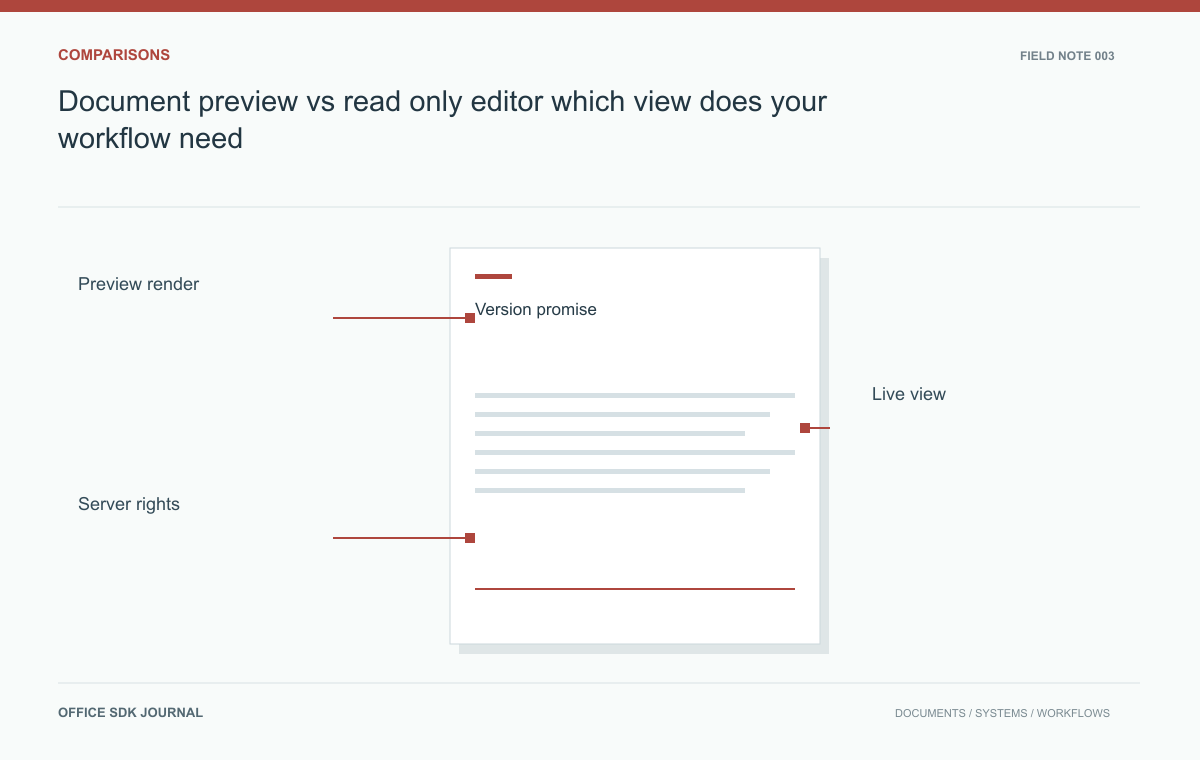
Choose a preview when users need a particular rendered version; choose a read only editor when they need the supported viewing features of an editing session. Neither label alone establishes freshness, comment access, or download permission. Decide which version the viewer must see before comparing the interfaces.
Compare the viewing contracts
Ask whether the user needs an approved snapshot, the latest saved version, or ongoing changes from collaborators. These are different promises. An invoice archive may require a stable representation that matches an issued record. A project review may require the current shared document and its comments. Write that promise into the product requirement before choosing an integration mode. A toolbar without editing controls does not tell you whether the underlying content is a static conversion, a cached result, or a live collaboration view.
| Question | Snapshot preview | Read only session |
|---|---|---|
| What content is reviewed? | A specified rendered source version | The session's documented document state |
| What must be operated? | Conversion and cache lifecycle | Session authorization and refresh behavior |
| What proves approval? | A decision bound to the rendered version | An explicit version binding beyond simply opening the session |
This comparison describes workflow patterns, not a feature guarantee for every product. Some previews expose searchable text and annotations; others are page images. Some read only sessions show ongoing changes; others reload only when requested. Check the deployed implementation before putting these distinctions in user guidance.
Use a fixed version requirement as a strong decision signal. If an approver must attest to exactly the wording submitted at noon, save that version relationship with the approval. If reviewers instead need to follow an author's current draft, show the current state and make its changing nature clear. Offering both views is reasonable when their labels and links make the difference obvious.

Operational cost and accessibility differ
A generated preview introduces conversion and cache invalidation work. A live viewing session introduces session authorization and potentially collaboration infrastructure. Neither pattern is universally lighter or safer; measure the actual deployment. Compare startup latency, source retrieval, update freshness, comment visibility, and behavior when the editing service is unavailable. Also establish which accessibility features and document structures survive the selected view. A fixed page image might satisfy visual review while failing a requirement to navigate headings or copy meaningful text with assistive technology.
A submitted contract must stay identifiable
Imagine a contract submitted for approval while its author continues drafting a later revision. The approver should review the submitted version, with a visible version label and a decision bound to that version. A live view that silently advances could make the approval ambiguous. During drafting, however, reviewers may need a read only collaboration session to discuss current changes. Preserve both use cases with explicit entry points such as Submitted version and Current draft, and avoid using the same unlabeled link for both behaviors.

Permission checks and acceptance tasks
Hiding buttons is a user interface decision, not an access control boundary. The server must independently authorize edits, comments, downloads, and any export operation exposed by the integration. A read only role may still be allowed to comment, or it may prohibit every mutation; choose and document the intended rule. Verify the capabilities of the selected product rather than assuming every operation can be disabled separately. Include direct requests and previously issued session credentials in the test, because users can bypass visible controls.
- Define the exact version or freshness promise shown to the viewer.
- List edit, comment, download, print, and export permissions separately.
- Test the view after the source changes and after access is revoked.
- Check keyboard navigation, text selection, and assistive technology against the actual rendering mode.
- Provide a clear error when the requested version is unavailable instead of substituting another version silently.
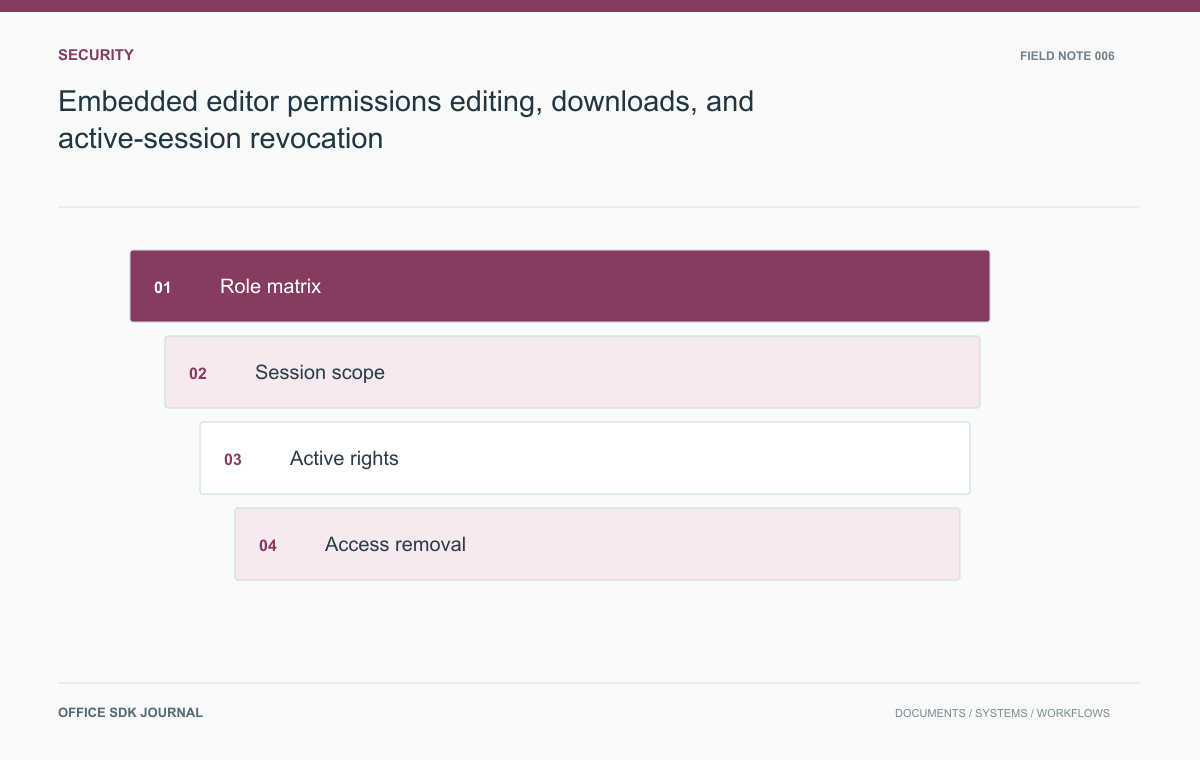
Embedded editor permissions: editing, downloads, and active-session revocation
Plan authorization checks for session creation, active editing, exports, and revocation across an embedded document workflow.
Read story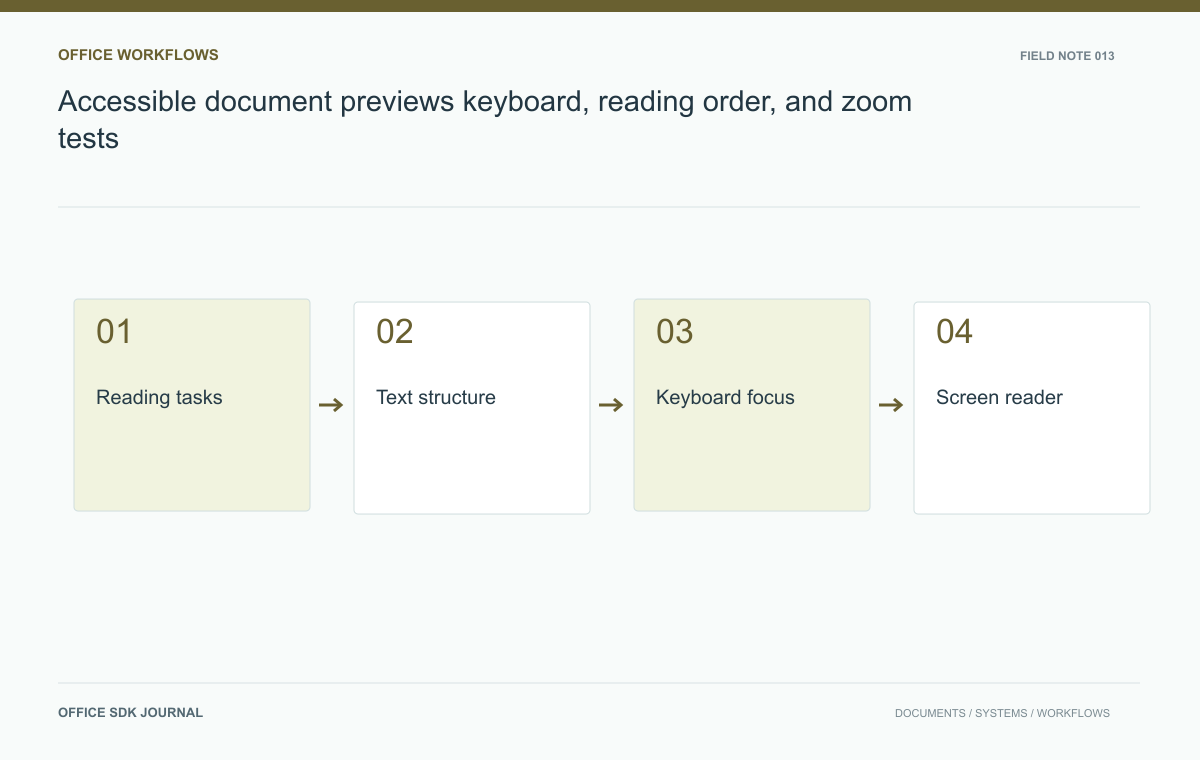
Accessible document previews: keyboard, reading order, and zoom tests
Evaluate keyboard use, reading order, zoom, and meaningful alternatives across the preview shell and rendered document.
Read story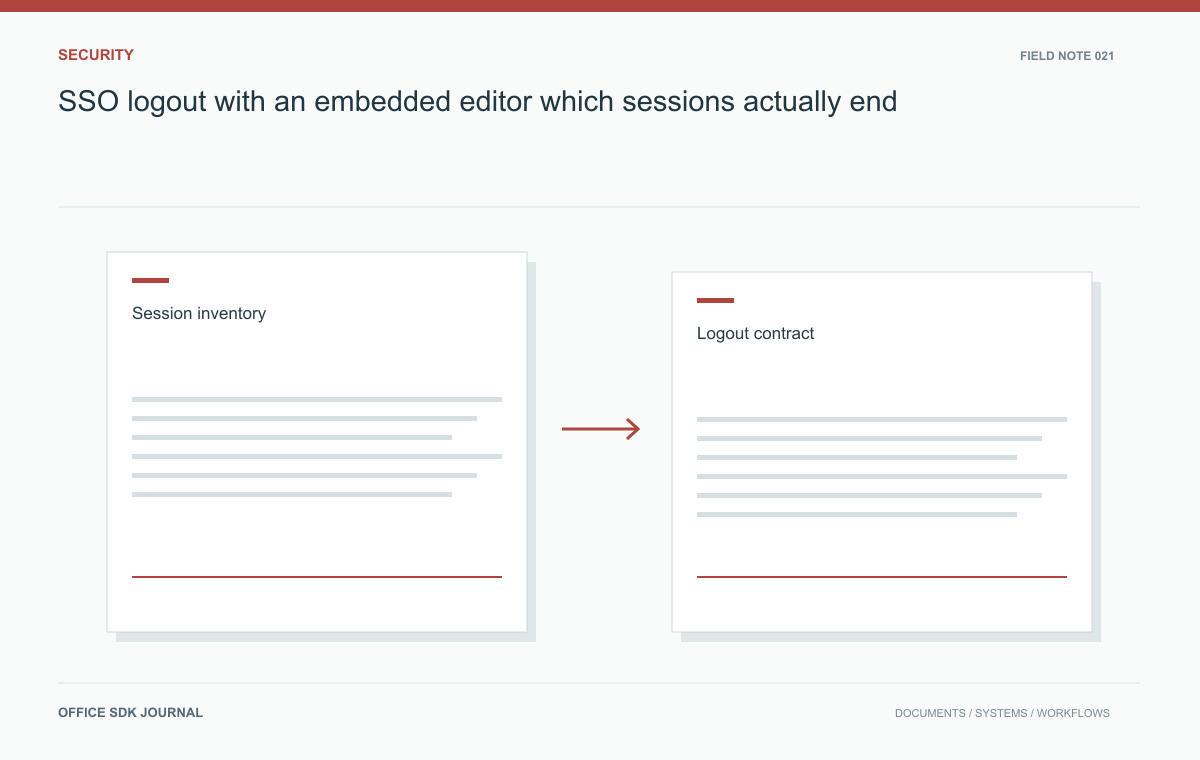
SSO logout with an embedded editor: which sessions actually end?
Identify separate session lifetimes and verify what logout, account switching, and access revocation actually terminate.
Read story