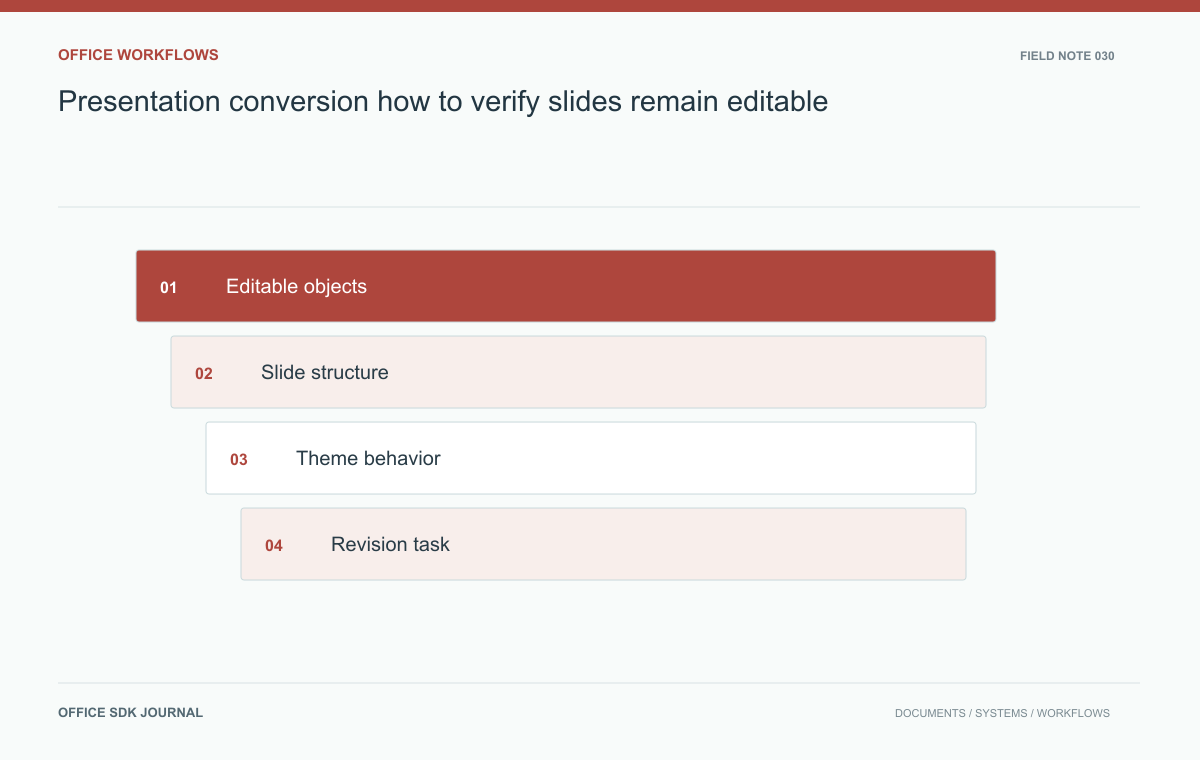
Presentation conversion: how to verify slides remain editable
Verify text, shapes, charts, notes, and master behavior when a presentation must remain editable after import or conversion.
A presentation is usefully editable only when users can change the elements their workflow requires. A visually correct slide may be a flattened image. Test text, shapes, charts, tables, notes, and layout behavior through import, editing, save, reopen, and export instead of accepting screenshots as proof.
Define the edits users must make
List the tasks users perform: replacing text, moving shapes, changing chart data, editing table cells, updating speaker notes, applying layouts, or modifying theme colors. Associate each task with representative slides. Avoid a blanket claim that a presentation is editable when only some elements can be selected. Products and conversion paths differ in how they represent complex objects. Record unsupported elements and acceptable fallbacks explicitly, especially when a visually preserved object becomes an image and no longer supports the editing action required by the business.
Appearance and object behavior are separate evidence
Check whether text remains text, grouped objects retain sensible relationships, and chart or table elements expose the operations users need. Verify reading order, notes, and alternative text where those are requirements. Compare font substitution and line wrapping at common slide sizes. A screenshot can reveal clipping but cannot establish object semantics. Likewise, an object inventory cannot prove that the rendered slide looks right. Use both kinds of evidence and identify which stage introduces a change: initial import, live editing, durable save, or export.
| Visual observation | Editing task that proves more |
|---|---|
| Chart looks correct | Change a source value and inspect the resulting series |
| Table fits the slide | Edit a cell and verify wrapping and row behavior |
| Diagram appears intact | Select and move an intended shape without flattening the group |
| Theme looks consistent | Add a slide or apply a supported layout and inspect inheritance |
Record results by element class. A deck might preserve editable text and tables while rendering one unsupported diagram as an image. That is a specific limitation with a measurable user impact, not evidence that the entire deck is either perfectly compatible or completely unusable.
Test the agreed destination as well as the web editor. A user may export the file for further editing in another application, where object structure and font availability matter again. Keep the destination version and settings in the acceptance record. If the workflow only requires a stable PDF handoff, evaluate that requirement separately rather than imposing unnecessary editing criteria or promising them without evidence.

Masters, themes, and new slides reveal structural loss
Presentations often rely on master layouts, placeholders, and theme settings to keep many slides consistent. A single slide may look acceptable even if those relationships were lost. Apply a supported theme or layout change and inspect repeated headings, footers, and placeholders. Add a new slide and check whether it inherits the expected structure. Verify the selected editor's documented capabilities rather than assuming desktop presentation behavior. If the workflow only promises content edits within existing slides, make that narrower scope visible in acceptance and user guidance.
Record acceptance by element and destination
- Map each required edit to a specific fixture and expected result.
- Check appearance and object behavior separately.
- Repeat edits after save and reopen, then inspect the exported file.
- Document flattened or unsupported elements with their user impact.
- Keep theme, font, and layout settings with the test evidence.
Revise a quarterly review deck end to end
Create a short deck with a title slide, a chart, a table, a grouped process diagram, and speaker notes. Import it, update one chart value, change a table cell, move a diagram shape, and add a slide using an available layout. Save, reopen, and export. Inspect both the rendered result and whether the edited elements remain usable in the agreed destination application. This operational example gives a concrete definition of success without implying complete compatibility with every animation, embedded object, or presentation feature.

How to test Word, Excel, and presentation conversion to PDF
Compare structure, critical values, and rendered pages with an agreed corpus instead of relying on a successful conversion response.
Read story
Spreadsheet locale bugs: dates, decimal separators, and leading zeros
Test stored values, display formats, and text imports separately when spreadsheets move between users and systems.
Read story
Document import progress: safe retries after upload and conversion failures
Give users honest progress, safe retries, and clear recovery when upload, validation, conversion, or registration fails.
Read story